
If you’ve ever filled out a contact form on a WordPress site and never heard back, there’s a good chance the website owner never actually got your message. That’s exactly what was happening on our own site, rizdigitalgrowth.com — and it’s a far more common problem than most business owners realise. Here’s what was really going wrong, and the free fix that solved it for good.
Key takeaways
- A “silent” WordPress contact form usually isn’t a forms-plugin bug — it’s an email delivery problem.
- Shared hosting’s built-in PHP
mail()function is unreliable and is routinely blocked or flagged as spam. - The fix is a free SMTP plugin that sends through a real mailbox, like Gmail, instead of your host’s server.
- Never trust the “message sent” screen alone — verify delivery with a test email and a real submission.
Why Your Contact Form Can Say “Thank You” and Still Fail
Most WordPress form plugins, including SureForms, Contact Form 7 and WPForms, only confirm that your submission was processed. The “Thank you, we’ll get back to you soon” message a visitor sees comes from the form plugin itself. Sending the actual notification email is a separate step that happens quietly in the background, using PHP’s built-in mail() function.
If that background step fails, the visitor still sees a success message — and you never find out, unless you go looking for it. That’s exactly what was happening to us: the contact form on our Contact page looked completely fine from the outside, but every single submission was silently vanishing before it reached our inbox.
What Was Actually Causing It
Our first instinct was to check the form’s settings — maybe the “Send Email To” address was wrong, or a notification rule had been disabled. It hadn’t. The recipient address was set correctly.
SureForms gave us the real answer with its own diagnostic banner, warning that a recent form notification “could not be handed to your server’s mail function.” In plain terms: our hosting provider’s built-in PHP mail() function was broken. This isn’t rare — most shared hosting accounts never properly configure PHP’s mail transport, and major inbox providers increasingly reject or spam-filter anything sent this way because it has no proper authentication (SPF, DKIM, or a real sending domain) attached to it.
The Free Fix: Send Through Real SMTP Instead of Your Host’s Server
The reliable fix is to stop depending on your host’s mail server altogether, and send form notifications through a real mailbox instead — using SMTP (the same protocol Gmail and Outlook use to send mail). We used SureMail, a free WordPress plugin, to route our contact form emails through a Gmail account.
- Install the free SureMail plugin and launch its guided setup wizard.
- Choose Gmail / Google Workspace as the connection type.
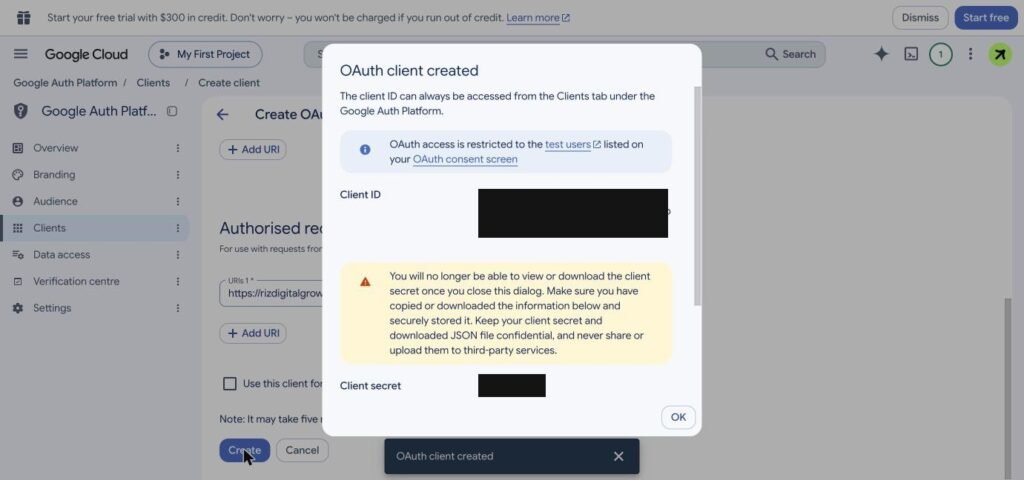
- Create an OAuth Client ID and Client Secret for your site in Google Cloud Console.
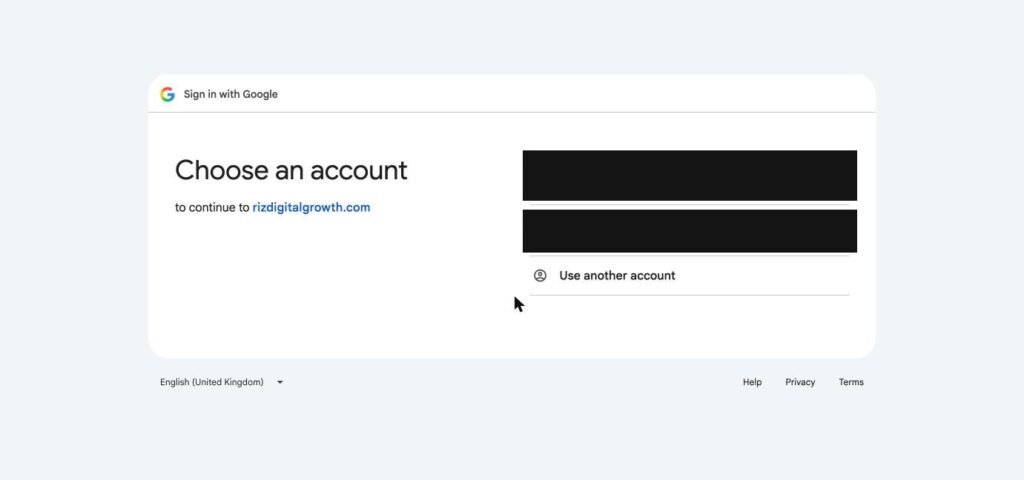
- Paste those credentials into SureMail, then click Authenticate with Google and choose the account you want to send from.
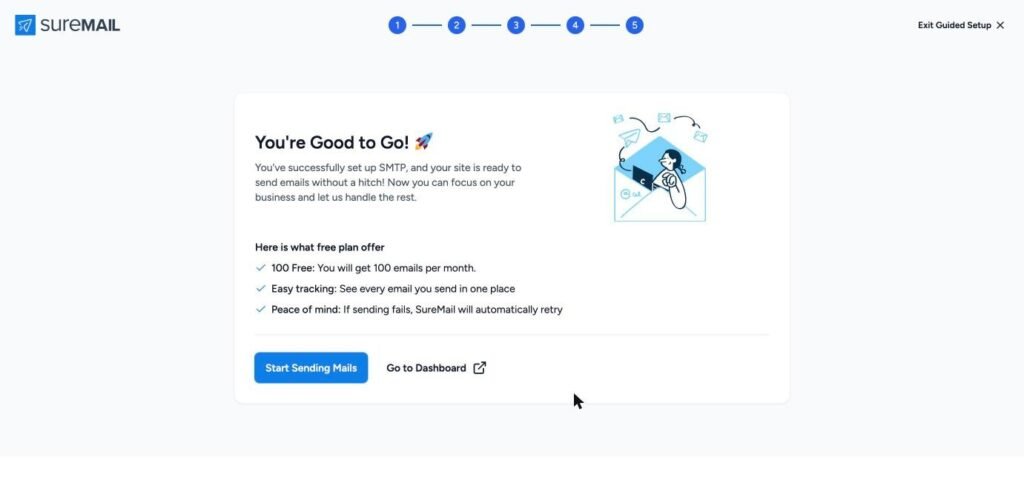
- Finish the guided setup — SureMail confirms the connection and you’re ready to send.
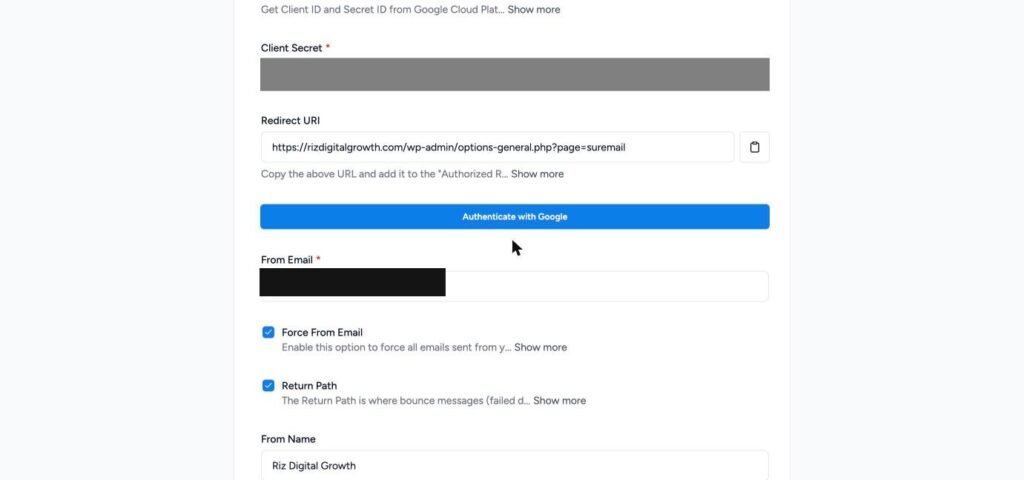
Google gives you a Client ID and Client Secret the moment your OAuth client is created in Google Cloud Console. Treat these exactly like a password — copy them once, store them securely, and never share a screenshot of the unredacted values. For the full walkthrough of that step, see How to Create an OAuth Client ID and Client Secret in Google Cloud Console.
How We Verified the Fix Actually Works
A green “Connected” status isn’t proof of anything by itself, so we tested it two ways. First, we used SureMail’s built-in “Send Test Email” button to confirm the SMTP connection itself worked. Then, to be certain the whole chain was fixed end to end, we filled out our own live Contact page and submitted it like a real visitor would.
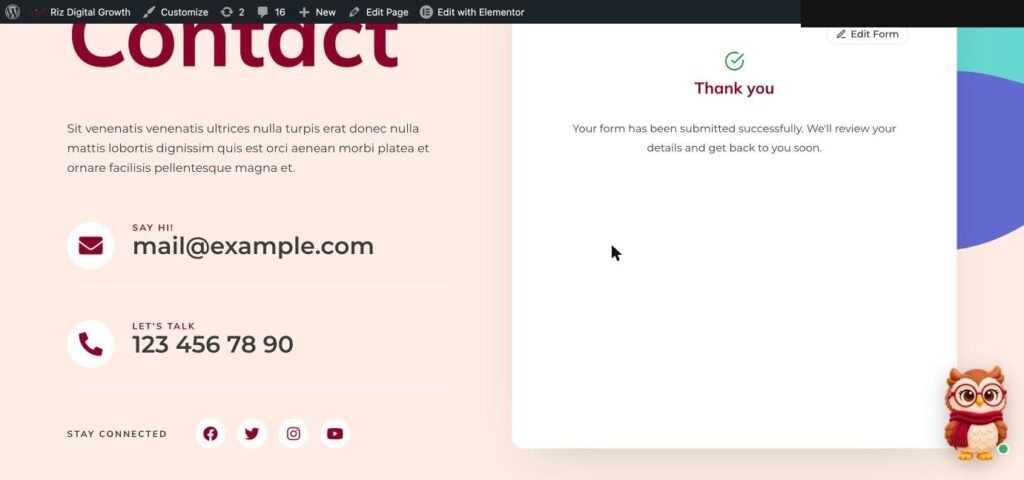
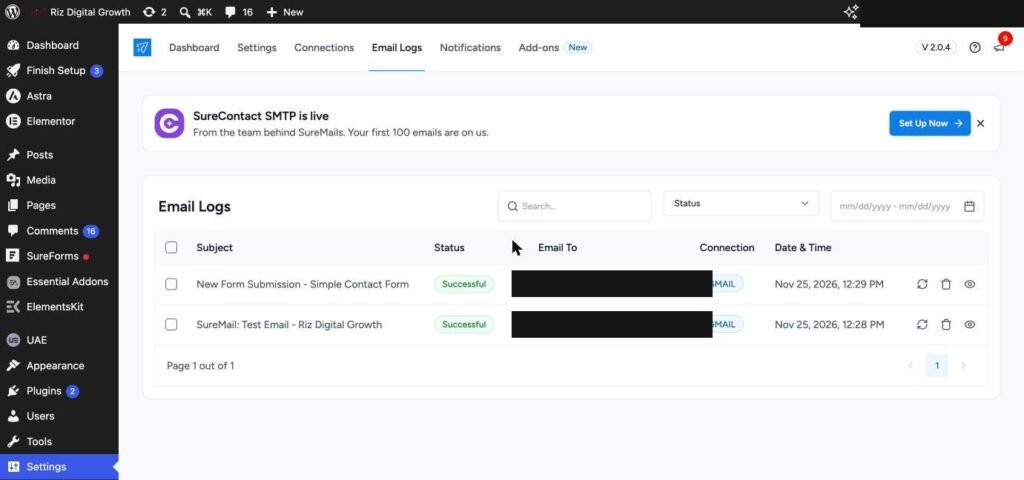
The form showed the usual “Thank you” message — which, as we now knew, meant nothing on its own. The real proof was in SureMail’s Email Logs, which showed both the test email and the real form submission marked Successful, delivered through the Gmail connection.
Is This a Common Problem?
Yes — far more common than most site owners realise. Unless a host specifically configures and maintains proper mail server authentication, WordPress’s default mail() function has no SPF, no DKIM, and no verified sending domain behind it. Gmail, Outlook and other major providers increasingly reject that kind of email outright or bury it in spam. If you’ve never deliberately set up SMTP on a WordPress site, there’s a good chance some or all of your form notifications have been quietly disappearing too.
Frequently Asked Questions
How do I know if my WordPress contact form is actually sending emails?
Submit your own form as a test and check your inbox (including spam). A “Thank you” message only confirms the form plugin processed your submission, not that the email arrived. If you’re using an SMTP plugin, its email log is the most reliable place to check delivery status.
Is SureMail really free?
Yes. Connecting your own Gmail or Google Workspace account via OAuth costs nothing and has no sending limits beyond Gmail’s own. SureMail also offers a separate paid “SureContact” relay for people who’d rather skip the Google Cloud setup, but it isn’t required.
Do I have to use Gmail specifically?
No. SureMail (and similar plugins like WP Mail SMTP) also support Outlook, Zoho, Amazon SES, Brevo, SendGrid, Mailgun and standard SMTP credentials from most hosts. Gmail is simply a free option almost every business already has.
What if I don’t want to set up Google Cloud Console myself?
That’s exactly the kind of fix we handle for clients — diagnosing why a form isn’t delivering and wiring up a reliable SMTP connection, so you never have to touch Google Cloud Console at all.
Is your WordPress contact form actually reaching your inbox?
If you’re not 100% sure, you probably want to check. Get in touch and we’ll find out — and fix it for good if it isn’t.